
Free and Secure
Bus Simulator Indonesia For PC – How to Play on Your Computer (2025 Guide)
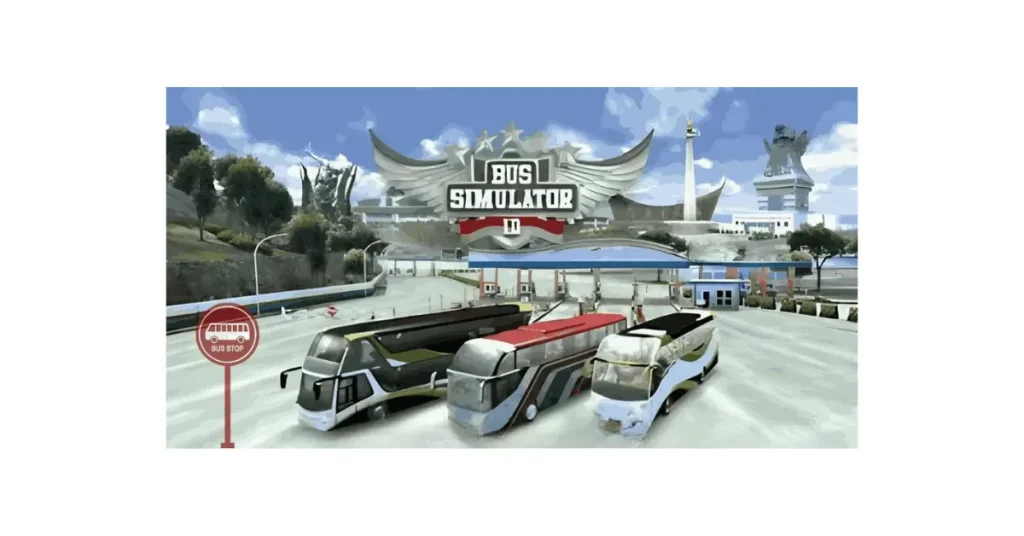
Bus Simulator Indonesia For PC – How to Play on Your Computer (2026 Guide)
Requirements
- Android 6.0+
- Latest Version: v4.3.4
- Last Updated: Today
- Price: Free
- File Size: 506 MB
- Category: Racing
- Developer: Maleo
- Get It On: Play Store
Introduction to Bus Simulator Indonesia for PC
Here’s the thing about Bus Simulator Indonesia – it’s built for phones, but playing on a tiny screen with touch controls gets frustrating fast. Your thumbs block half the view, the steering feels imprecise, and your phone turns into a hand warmer after 20 minutes.
I’ve been there. Trying to navigate tight Indonesian streets on a 6-inch screen while my battery drains to zero. Not fun.
The good news? You can play BUSSID on your PC using an Android emulator. No official PC version exists, and there’s no “PC MOD” floating around (anyone claiming otherwise is lying). But emulators like BlueStacks let you run the actual Android game on Windows with way better controls and performance.
This guide walks you through the entire process – from choosing the right emulator to actually playing the game on your computer. Takes about 15 minutes total if you follow along.
- Why Play Bus Simulator Indonesia on PC Instead of Mobile?
- System Requirements – Can Your PC Handle It?
- Which Emulator Works Best? (Honest Comparison)
- Step-by-Step Installation Guide
- Setting Up Controls for PC Gameplay
- Performance Optimization Tips
- Common Issues and How to Fix Them
- FAQs About Playing BUSSID on PC
- Final Thoughts
Why Play Bus Simulator Indonesia on PC Instead of Mobile?
Playing on PC isn’t just about a bigger screen – the whole experience changes.
What you actually get:
Bigger, clearer display. Indonesian road signs are readable. Traffic becomes easier to spot. You can actually see what’s 50 meters ahead instead of squinting at a small phone screen.
Keyboard and mouse control. Arrow keys for steering, spacebar for brake, shift for acceleration. Way more precise than dragging your thumb across glass. Some players even connect actual steering wheel controllers.
No battery anxiety. Your phone stays charged. Play for three hours straight without watching the battery percentage drop or dealing with overheating warnings.
Better performance. PCs have more power than phones. Higher graphics settings, smoother frame rates, no random lag spikes when traffic gets heavy.
More storage freedom. BUSSID takes up 500+ MB. Add custom buses and mods? That number doubles. PCs have storage to spare, unlike phones where you’re constantly deleting apps to make room.
Multitasking capability. Watch YouTube tutorials on one screen, play on another. Check route maps, browse custom liveries, or chat on Discord without closing the game.
The downside? You lose portability. Can’t play on the bus (ironic, I know) or during lunch breaks. But if you’re home and want the best BUSSID experience possible, PC wins easily.
System Requirements – Can Your PC Handle It?
BUSSID isn’t demanding, but emulators need decent specs to run smoothly. Here’s what you need:
| Component | Minimum (Playable) | Recommended (Smooth) |
|---|---|---|
| Operating System | Windows 7 (64-bit) | Windows 10 or 11 |
| Processor | Intel/AMD Dual-Core | Intel i5 or AMD Ryzen 5 |
| RAM | 4GB | 8GB or more |
| Storage | 5GB free space | 10GB+ (for emulator + game + mods) |
| Graphics | Integrated GPU | Dedicated GPU (GTX 1050 or better) |
| Display | 1280×720 minimum | 1920×1080 (Full HD) |
| Internet | Required for download | Optional after installation |
Real talk about these specs:
If your PC is from 2018 or newer and wasn’t a bottom-tier budget model, you’re fine.
Got 4GB RAM? Game runs, but close everything else. Chrome with 20 tabs open will kill performance.
Integrated graphics? Acceptable. Lower the game’s graphics settings and you’ll get 30-40 FPS.
Old laptop from 2015? Might struggle. You can try, but expect stuttering in multiplayer or heavy traffic areas.
Quick check: Can your PC run Minecraft or League of Legends smoothly? Then BUSSID will work fine.
Which Emulator Works Best? (Honest Comparison)
Three main options exist. I’ve tested all of them with BUSSID. Here’s what actually happens:
BlueStacks (Recommended for Most People)
Pros:
- Most stable performance with BUSSID
- Easy setup – literally just install and go
- Good keyboard mapping tools
- Regular updates, rarely crashes
- Works with most PC configurations
Cons:
- Takes up more disk space (about 5GB)
- Includes some bloatware apps you’ll need to delete
- Slightly heavier on RAM usage
My experience: Installed in 5 minutes. Game ran immediately without tweaking settings. This is what I’m using now.
LDPlayer (Best for Lower-End PCs)
Pros:
- Lighter on system resources
- Faster boot time than BlueStacks
- Good performance even with 4GB RAM
- Clean interface, less bloat
Cons:
- Occasional compatibility issues with some Android games
- Control mapping not as intuitive
- Smaller user community (harder to find help if issues arise)
My experience: Runs well but required manual control setup. Crashed once during installation, worked fine after reinstalling.
NoxPlayer (Alternative Option)
Pros:
- Feature-rich with lots of customization
- Good for recording gameplay
- Supports game controllers easily
Cons:
- Slower installation process
- More complicated interface for beginners
- Some users report ads in the emulator itself
My experience: Works fine but felt unnecessarily complex for just playing BUSSID.
Bottom line: Just use BlueStacks unless you have a specific reason not to. It works, it’s reliable, and you won’t spend an hour troubleshooting.
Step-by-Step Installation Guide
Assuming you’re going with BlueStacks (smart choice), here’s the exact process:
Part 1: Download and Install BlueStacks
Step 1: Go to bluestacks.com (official site – don’t download from random blogs).
Step 2: Click the big “Download BlueStacks” button. File is about 600MB, takes 2-10 minutes depending on your internet.
Step 3: Once downloaded, open the installer file (usually in your Downloads folder).
Step 4: Installation wizard opens. Click “Install Now” and wait. This part takes 5-8 minutes. Your PC might feel sluggish during installation – normal.
Step 5: BlueStacks launches automatically after installing. You’ll see an Android interface on your PC screen.
Part 2: Set Up Google Account
Step 6: BlueStacks asks you to sign in with a Google account. Use your existing one or create a new account if you don’t want to mix game data with personal stuff.
Step 7: Complete the sign-in process. Might ask for verification – just follow the prompts.
Step 8: You’re now in the BlueStacks home screen. Looks like an Android tablet interface.
Part 3: Install Bus Simulator Indonesia
Step 9: Open the Google Play Store app inside BlueStacks (icon should be visible on home screen).
Step 10: In the Play Store search bar, type: Bus Simulator Indonesia
Step 11: Game appears at top of results (developer: Maleo). Click on it.
Step 12: Hit the green “Install” button.
Step 13: Download begins. This takes 10-15 minutes because the game is 506MB. Progress bar shows at the top of the Play Store.
Step 14: Once installed, “Open” button appears. Click it.
Step 15: Game launches. First startup takes an extra minute to extract files and set up. After that, it’s instant.
You’re done. The BUSSID icon now sits on your BlueStacks home screen for easy access.
Setting Up Controls for PC Gameplay
Default touch controls suck on PC. You’re clicking around with a mouse trying to steer – feels terrible.
Fix this by mapping keyboard keys to game controls:
How to Set Up Controls in BlueStacks
1. Start Bus Simulator Indonesia so the game is running.
2. Look for the keyboard icon on the right side of the BlueStacks window (usually near the top-right).
3. Click it. This opens the “Game Controls” menu.
4. You’ll see preset control schemes. BlueStacks sometimes auto-detects BUSSID and applies controls automatically. If not, you set them manually.
Recommended Keyboard Layout:
- Arrow Keys (↑↓←→) – Steering and acceleration/brake
- Spacebar – Handbrake
- Shift – Gear up (if using manual transmission)
- Ctrl – Gear down
- H – Horn
- L – Lights toggle
- C – Camera view change
- Tab – Pause/Menu
- 1, 2, 3 – Different camera angles
How to Map Keys Manually:
- Click “Edit” in the Game Controls window
- Drag control points onto the screen where game buttons appear
- Click each control point and assign a keyboard key
- Test in-game to make sure everything responds
- Save your configuration
Pro tip: Spend 5 minutes getting controls comfortable. Bad key mapping ruins the experience. You want steering to feel natural, not like you’re playing QWOP.
Controller Support
Got an Xbox or PlayStation controller? Even better.
- Plug controller into PC via USB
- BlueStacks usually detects it automatically
- Go to Settings → Preferences → Enable controller support
- Map buttons the same way you’d map keyboard keys
Steering with an analog stick feels way more realistic than keyboard arrow keys.
Performance Optimization Tips
Game running choppy? Laggy? Try these fixes before giving up:
In BlueStacks Settings:
Allocate more resources:
- Settings → Performance
- Set CPU cores to 4 (if you have them)
- Set RAM to 4GB
- Enable High Performance mode
- Restart BlueStacks after changes
Enable Virtualization: Your PC might have this disabled. Enabling it makes emulation way faster.
- Restart PC → Enter BIOS (usually press F2, F10, or Del during startup)
- Find “Virtualization Technology” or “VT-x” or “AMD-V”
- Enable it
- Save and exit BIOS (This sounds scary but just Google “enable virtualization [your PC brand]” for exact steps)
In BUSSID Settings:
Lower graphics if needed:
- Game Settings → Graphics Quality → Medium or Low
- Disable shadows
- Reduce traffic density
- Turn off reflections
Adjust resolution:
- BlueStacks Settings → Display
- Lower resolution to 1280×720 if game stutters
- Loses visual quality but gains smooth gameplay
General PC Optimization:
- Close Chrome and other heavy programs while playing
- Update graphics drivers (outdated drivers cause random lag)
- Make sure Windows isn’t downloading updates in background
- Restart PC if it’s been running for days
Real example: My friend’s laptop was getting 15 FPS (unplayable). Enabled virtualization, allocated 4GB RAM to BlueStacks, lowered BUSSID graphics to Medium. Now runs at 50-60 FPS smoothly.
Common Issues and How to Fix Them
Stuff breaks sometimes. Here’s how to fix the usual problems:
“BlueStacks won’t install”
Cause: Your Windows version is too old, or you don’t have admin rights.
Fix:
- Right-click installer → “Run as Administrator”
- Update Windows to latest version
- Disable antivirus temporarily during installation (some flag it incorrectly)
“Game is stuck on loading screen”
Cause: Corrupted download or insufficient RAM.
Fix:
- Close BlueStacks completely
- Open BlueStacks → Settings → Apps → Find BUSSID → Clear Cache
- If that doesn’t work, uninstall and reinstall the game
- Allocate more RAM to BlueStacks
“Controls aren’t responding”
Cause: Key mapping didn’t save properly.
Fix:
- Re-open Game Controls
- Delete existing mappings
- Map keys again from scratch
- Make sure you clicked “Save” after mapping
“Game crashes every 10 minutes”
Cause: Usually a RAM issue or graphics driver problem.
Fix:
- Close all other programs
- Update graphics drivers from manufacturer website
- Lower BUSSID graphics settings
- Increase RAM allocation in BlueStacks settings
“Black screen after launching game”
Cause: Graphics rendering issue.
Fix:
- BlueStacks Settings → Graphics
- Change Graphics Engine (try OpenGL if on DirectX, or vice versa)
- Switch Graphics Renderer to “Compatible” mode
- Restart BlueStacks
“Touch controls show up instead of keyboard controls”
Cause: Game Controls not activated.
Fix:
- Press the keyboard icon during gameplay to activate controls
- Make sure “Show Key Mapping” is enabled in Game Controls settings
Still having issues? Check BlueStacks support forum. Chances are someone else had your exact problem and found a solution.
FAQs About Playing BUSSID on PC
Can I play Bus Simulator Indonesia on PC without an emulator?
No. There’s no official PC version and no standalone executable. Emulator is the only way. Anyone offering a “PC download” is either selling you an emulator or trying to scam you.
How much storage space do I need to play Bus Simulator Indonesia on Windows?
About 6-7GB total. BlueStacks takes 3-4GB, BUSSID takes 500MB-1GB (depending on updates and cache), and you want extra space for smooth operation.
Can I play Bus Simulator Indonesia offline on PC?
Yes. Career Mode and Tour Mode work completely offline after initial installation. Only multiplayer requires internet connection.
Will my progress sync between phone and PC?
Only if you use the same Google Play account and the game supports cloud save (BUSSID does). Progress transfers automatically in most cases.
Is it legal to use an emulator to play BUSSID?
Yes. Emulators are legal. You’re running the official Android app, just on different hardware. Not piracy, not illegal.
Can I use mods and custom buses on PC version?
Yes. Download .bussidmod files, import them the same way you would on Android. Some players find it easier on PC because file management is simpler.
Does playing on PC give any advantage in multiplayer?
Slightly. Better controls and bigger screen help with precision driving. Not a massive advantage though – good players on mobile still beat average players on PC.
Which is better – BlueStacks or LDPlayer for BUSSID?
BlueStacks for most people. LDPlayer if your PC barely meets requirements. Both work fine, BlueStacks is just easier to set up.
Can I record gameplay while playing on PC?
Yes. BlueStacks has built-in recording. Or use OBS Studio for higher quality captures. Way easier than trying to record on phone.
Why is the game running slower on PC than on my phone?
Either your PC doesn’t meet recommended specs, or emulator settings need adjustment. Check the Performance Optimization section above.
Final Thoughts
Playing Bus Simulator Indonesia on PC turns a good mobile game into something genuinely enjoyable. The bigger screen and proper controls make a real difference – especially on those tight mountain roads where precision matters.
Setup takes maybe 20 minutes if you follow the steps. After that, you’re driving Indonesian routes on a full monitor with keyboard controls that actually make sense.
Is it perfect? No. You lose the portability of mobile gaming. And if your PC is ancient, performance might struggle. But for anyone with a halfway decent computer who wants the best BUSSID experience possible, emulator method works great.
BlueStacks handles everything smoothly, the game runs well, and once you get keyboard controls mapped properly, you won’t want to go back to touch controls.
Download BlueStacks, install BUSSID, spend five minutes setting up controls, and you’re ready to drive. The Indonesian bus routes look way better on a 24-inch monitor than a phone screen.
Worth trying if you’re serious about the game. Takes less time to set up than a single Career Mode route takes to complete.